

Registration Steps
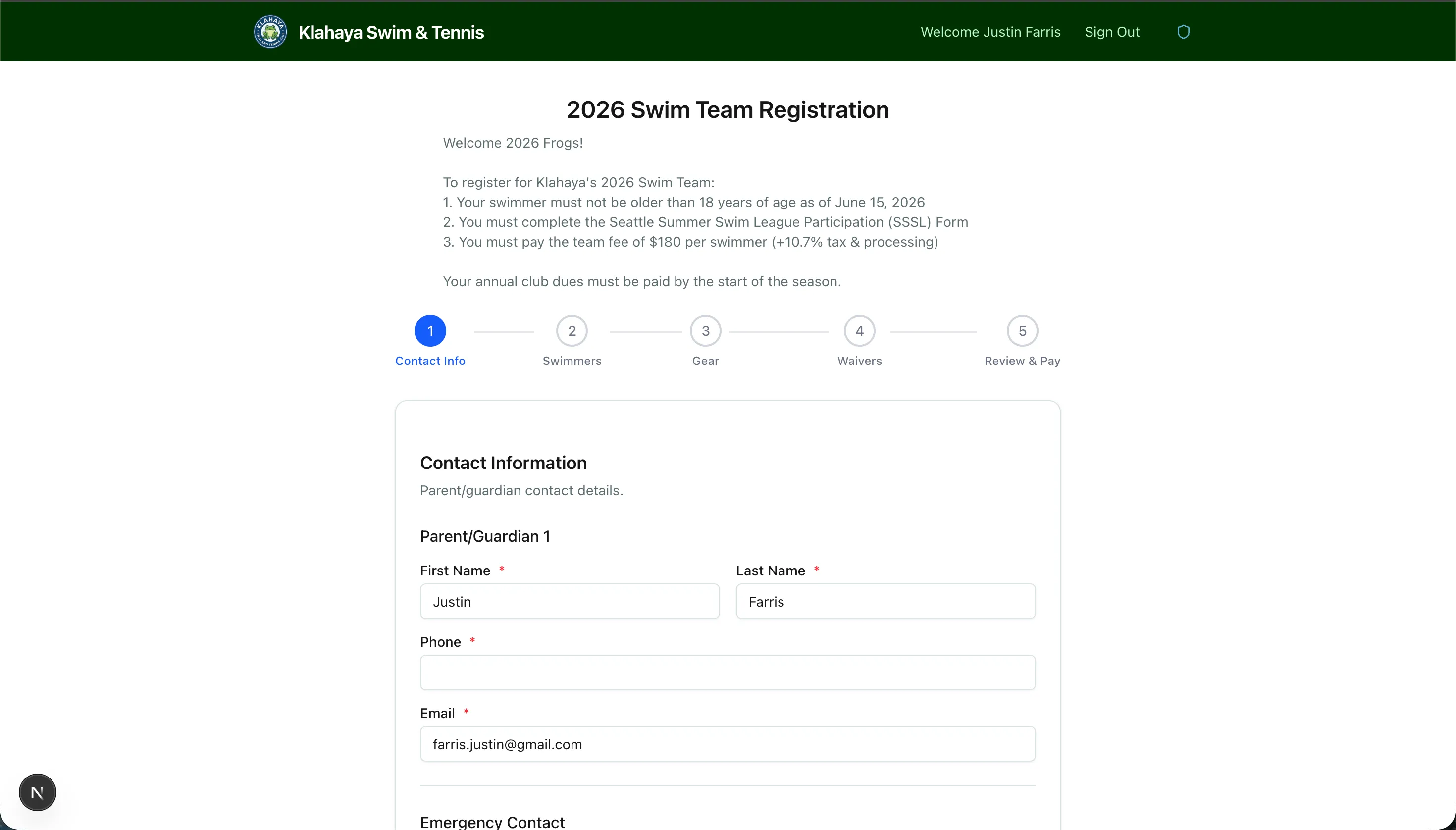
Team registration is a step-by-step wizard. The progress tracker at the top shows every step; you can click a completed step to go back and change something. Your progress is saved in your browser, so you can leave and come back without starting over.
The Steps
Section titled “The Steps”Exactly which steps appear depends on how the club configured the form. In order:
Membership (some forms only)
Section titled “Membership (some forms only)”If the form has more than one price tier, pick your Membership Status. Each option shows its price per player.
Contact Info
Section titled “Contact Info”- Parent/Guardian 1 — name, phone, and email are required (your name and email are filled in for you)
- Parent/Guardian 2 — optional, if the form allows a second guardian
- Emergency contacts — required on forms that ask for them
Players
Section titled “Players”The step is named after what the team calls its participants (for example Swimmers). For each player:
- Quick add from your family — click a person from your family roster to fill in their name and date of birth
- First Name, Last Name, and Date of Birth
- League Age — calculated for you from the date of birth as of the form’s age cutoff date (this is the league’s age, not the player’s current age)
- Competition category and T-shirt size, when the form asks for them
Click Add swimmer (or Add player, depending on the team) to register another player, up to the form’s maximum. Remove takes one off again.
Order team gear (caps, shirts, and so on) by size and quantity. Some items are ordered per player. A link to an external store may also be shown.
Waivers
Section titled “Waivers”Open and read each waiver, then accept it. Some forms also ask for a typed signature and any medical conditions the coaches should know about.
Review & Pay
Section titled “Review & Pay”Check everything, see the price breakdown, and pay. See Payment.
Age Rules
Section titled “Age Rules”The club can set a maximum age and, optionally, a minimum age for a form. When a rule is enforced, a player outside the range shows a red notice under their details (“must be 18 years of age or younger as of …”) and the Continue button won’t advance until the date of birth is corrected. When a rule is guidance only, the Players step just says who the team is intended for.
Already Registered?
Section titled “Already Registered?”If your family already has a paid registration for this team, a warning above the wizard lists the players you have already registered (with their ages). Typing a name and date of birth that match one of them shows an inline “is already registered” notice on that player. You can still continue — this is to prevent accidental double registrations, not to block adding a sibling.
Restricted Forms
Section titled “Restricted Forms”Some forms only accept players of certain member types (for example, junior members). On those forms the Players step reads “Select the swimmer:” and you must pick each player from your family list — free-text names aren’t accepted. If no one in your family is eligible, the step says so and points you to Family Settings.