

Family Detail View
Open a family from the roster with View to reach its detail page (/admin/families/[id]). The page is split into tabs so each one loads only what it needs.
Identity line
Section titled “Identity line”Every tab shows the family name and a summary line: Account ID, Member #, the current account type, Member since [year] and the season’s enrollments, for example Summer 2026 Teams: Swim, Tennis. A Check-in suspended badge appears here when the family is flagged.
- Overview — stat tiles for Dues, Volunteer hours, Guest passes and Concessions tab (each links to the tab that owns it), the Household details card and the People card.
- Billing — payment methods, payment history, dues and the concessions tab cap (documented under Payments).
- Check Ins & Guest Passes — the Check-in flag, the staff-only Check-in note, the Guest passes balance with an Adjust form, and the Check-in & guest pass history ledger.
- Volunteering — activity enrollment and hour entries; see Logging Hours for a Family.
- Account — the Family record (name, Account ID, member number, account type) and the Danger Zone; see Creating & Editing Families.
- History — the account audit timeline; see Account History.
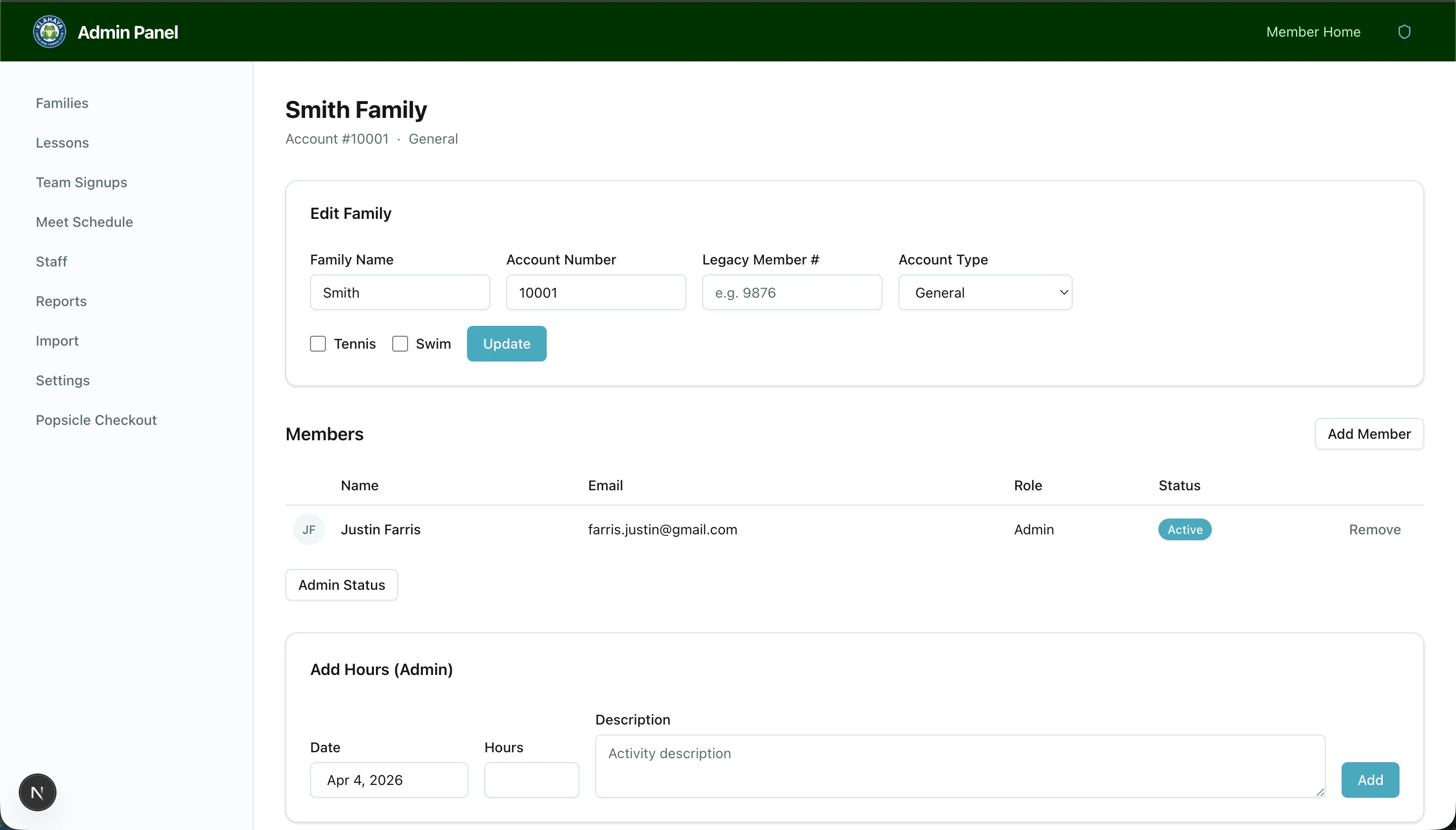
The People card
Section titled “The People card”People (N) lists login members first (with their member type, role badge where relevant, an Invited badge until they sign in, a Roster badge when the login is linked to a roster entry, and a Limited login badge when the login cannot act for the family), then roster members marked no login. Each row shows the person’s photo or initials, age, email and cell phone.
Row actions for admins:
- Edit — opens Edit [name] with Photo (up to 5 MB), Full Name, Email (logins only), Role (logins only: Member, Staff or Admin), Date of Birth, Cell Phone, Work Phone, Gender and Member Type. Click Save Changes.
- Remove — see below.
- Activate / Send Invite — for invited logins: create their account immediately, or email them a sign-in link.
- View as — open the member portal exactly as that member sees it (read-only, 30 minutes, logged).
- Enable login (roster members) and Link to roster / Unlink roster (logins) — see Enabling Portal Login.
- Limit login / Remove limit (logins) — see Limited Logins.
What Role does
Section titled “What Role does”The Role choice sets two things on the person’s staff page:
| Role | What is set |
|---|---|
| Admin | Gives Full admin. Removes Front desk |
| Staff | Gives Front desk. Removes Full admin |
| Member | Removes both |
Anything else the person holds is left alone. For anything beyond these three, such as making someone a Manager, use Admin > Staff. Staff who are not members are added there too. See Adding Staff.
You cannot demote the last Super Admin who can sign in. You will see You can’t remove the last Super Admin. and nothing in the edit is saved.
Adding a person
Section titled “Adding a person”Click Add Person in the People card header. The dialog asks for First Name, Last Name, Date of Birth, Type, Photo (optional) and — for adult member types — Email (optional). With an email, the person also gets a login invite; without one, they are a roster member only. Admins can pick any member type regardless of the family’s account type, and additions are free unless you tick Charge the $X fee to the family’s card on file for a type the club prices.
Invite login (next to Add Person) creates a login-only person: Full Name, Email and Role (Member or Admin), then Send Invite.
Removing a person
Section titled “Removing a person”Remove opens Remove [name]? and checks what will be deleted before you confirm: lesson registrations (with the paid count and amount), pending cart items, signed waivers, volunteer signups, member-addition purchases and hour entries. Private lessons and past check-ins are kept with the person’s name. The action cannot be undone.
Staff view
Section titled “Staff view”Staff can open a family’s Overview and Check Ins & Guest Passes tabs only, with no edit controls: no stat tiles, no People actions, and the Check-in note is read-only. Staff never see the Billing, Volunteering, Account or History tabs.