

Rosters & Opt-Outs
Every meet has a roster page showing each registered player’s opt-in status, with tools to change it, download it, or keep it in a live Google Sheet.
Reading the Schedule
Section titled “Reading the Schedule”Admin → Meet Schedule lists meets by sport. Each row shows live Opted In and Opted Out counts, so you can spot a thin roster without opening the meet. Click View to open the roster.
The Meet Roster
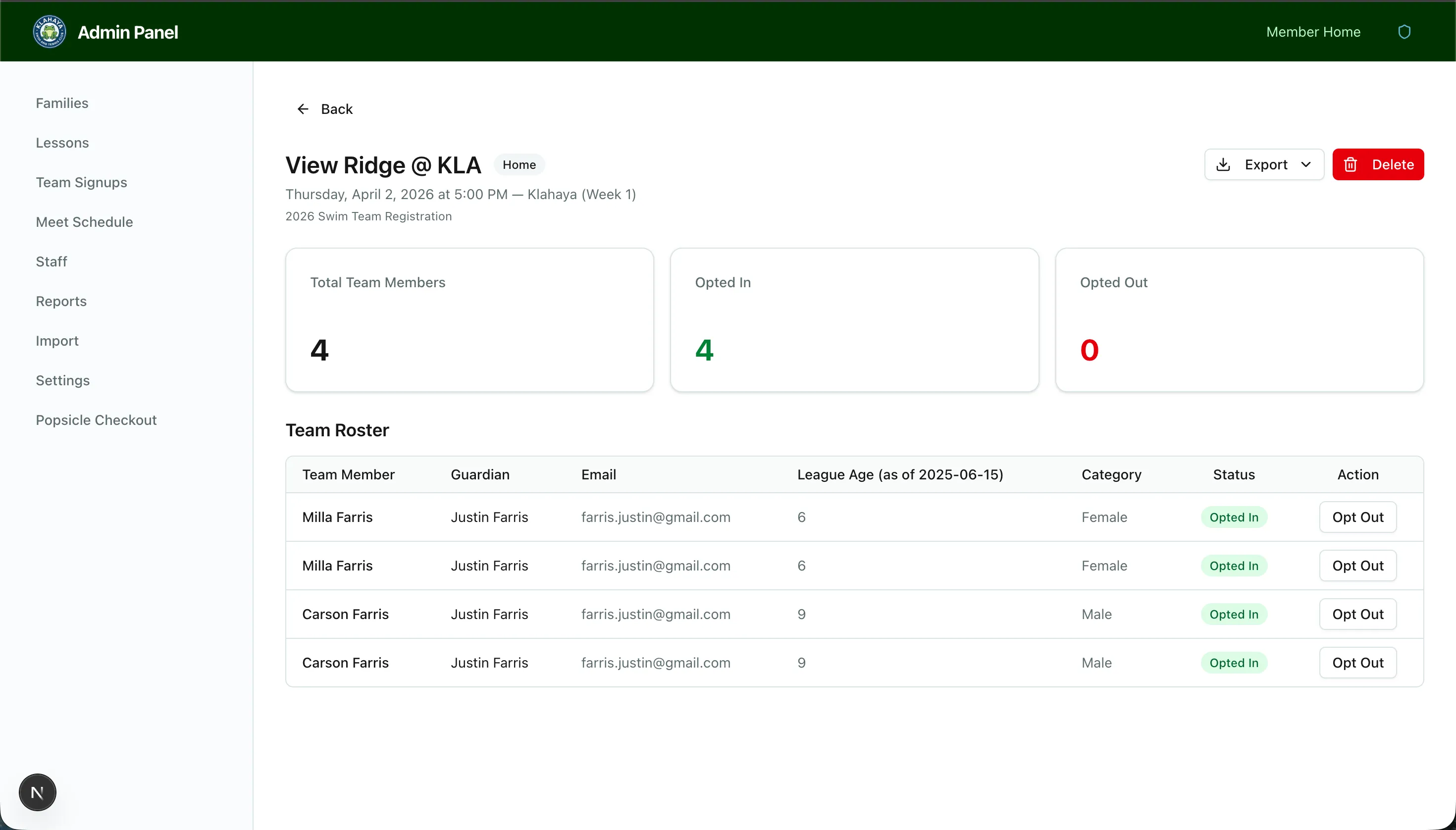
Section titled “The Meet Roster”The meet’s detail page shows the title, date, location, Home badge, and an Opt-out Locked badge when families can’t change status, followed by three counts: Total Team Members, Opted In, and Opted Out.
The Team Roster table lists every player on a paid registration for the meet’s team, with:
- Team Member — the player’s name
- Guardian and Email — the Guardian 1 contact from the registration
- League Age (as of …) and Category, when the form collects them
- Status — Opted In or Opted Out
- Action — an Opt In / Opt Out button
Changing a Player’s Status
Section titled “Changing a Player’s Status”Click Opt Out (or Opt In) in the player’s row. Admin changes work even on meets where opt-out is locked for members, so you can record a phone call or a coach’s note.
Admin changes follow the same rules as member changes: if the change lands after the weekly roster cutoff, the team’s coach contacts get the late-change email, and the meet’s Google Sheet re-syncs. See Meet Reminders & Roster Cutoff.
Exporting a Roster
Section titled “Exporting a Roster”- Download CSV downloads the roster as a file named after the meet and date (for example,
meet_View_Ridge_@_KLA_2026-06-20.csv) - The Google Sheets panel connects the meet to a live sheet — Create Sheet, then Sync now, Open, or Disconnect. The sheet updates automatically as families and admins change opt-outs and when the meet’s details change. See Google Sheets Sync
The CSV and the sheet use the same columns, so coaches see the same layout either way.