

Waitlist Configuration
Each class can optionally have a waitlist. When enabled, members can join a queue when the class is full.
Enabling the Waitlist
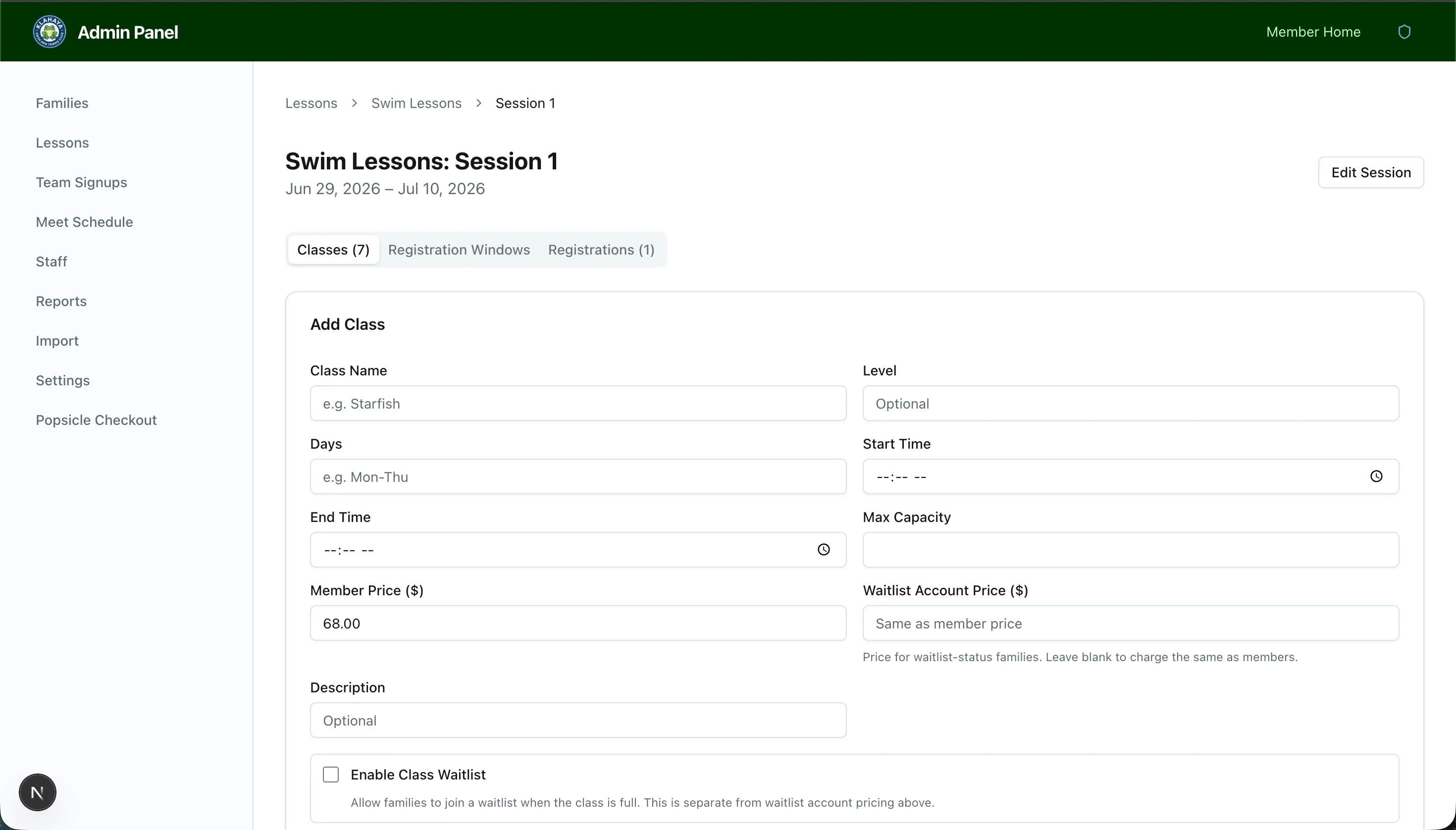
Section titled “Enabling the Waitlist”When creating or editing a class:
- Tick Enable Class Waitlist
- Optionally tick Auto-advance waitlist on cancellation
Auto-Advance Mode
Section titled “Auto-Advance Mode”- On — when someone cancels, the next person on the waitlist automatically receives an email offer (and a push notification in the Klahaya app) with a 24-hour window to accept
- Off (default) — admins send offers by hand from the Registrations tab, giving you full control over who gets offered a spot
The class list shows Auto, Manual or Off in the Class Waitlist column.
Managing the Waitlist
Section titled “Managing the Waitlist”On the session’s Registrations tab, each class has a Waitlist (N) section listing who is waiting in order, when they joined, and an Offer Status such as “Offer sent · expires in 5h”.
- Send Offer to Next — emails the next person in line. Available until the session’s start date; refused with “Class is full — no offer sent” if there’s no open spot.
- Register Now — after the session has started, directly registers a waitlisted member without sending an offer
Offer Expiry
Section titled “Offer Expiry”Waitlist offers expire automatically after 24 hours. An hourly job processes expired offers and cascades to the next person in line. Accepting an offer registers the member without payment; if the class refilled first, the member keeps their place in the queue.