

Managing Registrations
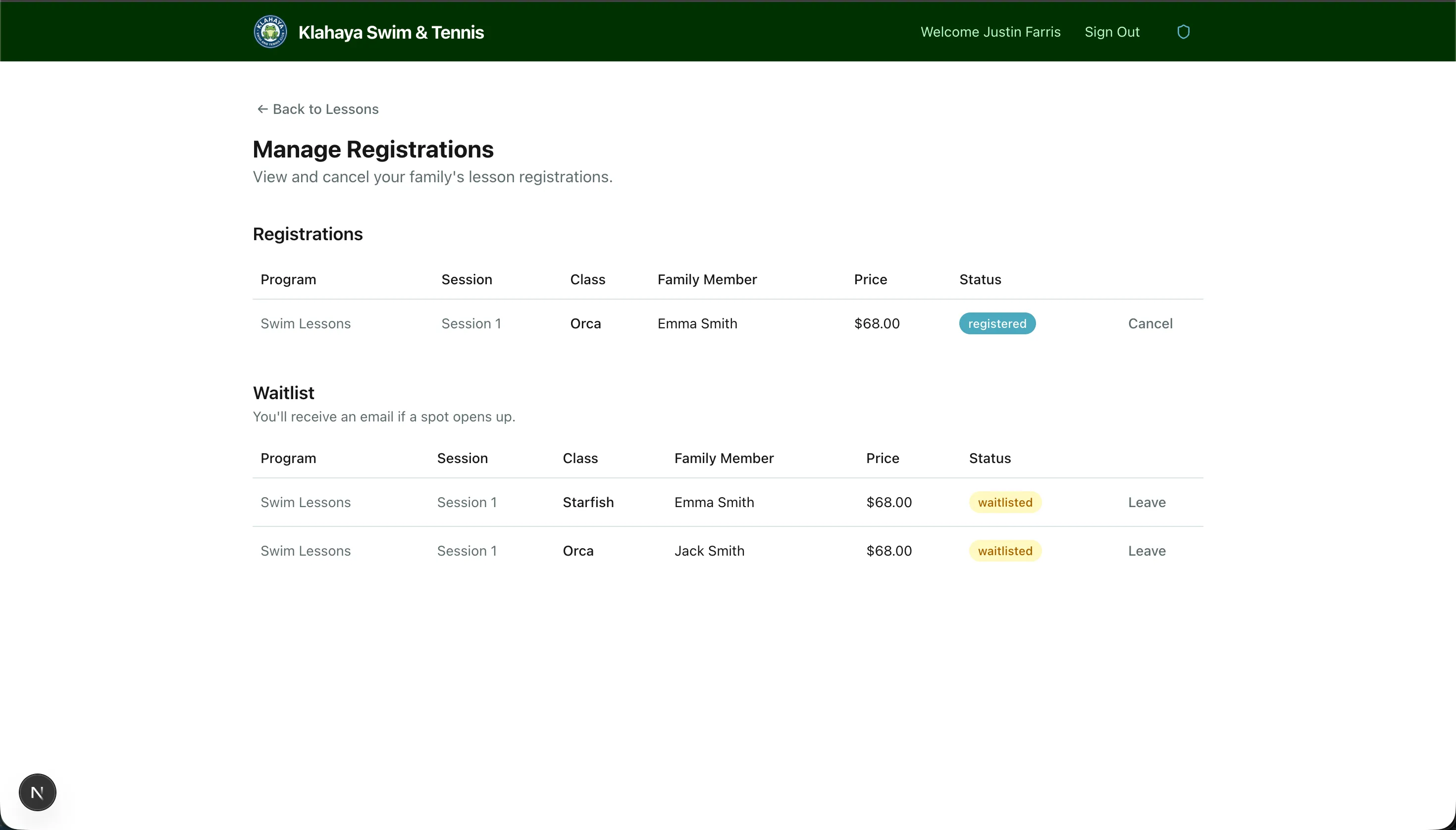
The Manage Registrations page shows all of your family’s current lesson registrations and waitlist spots.
Viewing Registrations
Section titled “Viewing Registrations”- Navigate to Lessons > Manage Registrations (or click View All on the Lessons page)
- Registrations are listed under Registrations and Waitlist, showing:
- Program, Session and Class
- Time — the class days and time slot (e.g. “Mon, Wed · 9:00 AM–10:00 AM”)
- Participant and Price
- Status — Registered, Paid, or On Waitlist
Cancelling a Registration
Section titled “Cancelling a Registration”- Find the registration and click Cancel
- Confirm — the spot is freed and offered to the next person on the waitlist if the class has one
Re-registering After Cancelling
Section titled “Re-registering After Cancelling”If you change your mind, register for the class again from the session page. A cancelled registration is simply revived when you rebook the same class for the same person — you won’t be charged twice or see a duplicate.
Leaving the Waitlist
Section titled “Leaving the Waitlist”If you’re on a waitlist and no longer want to wait:
- Find the entry under Waitlist
- Click Leave (or Leave Waitlist on a phone)
- Confirm — the person is removed from the queue