

Cart & Checkout
When you add paid lessons to your cart, each spot is held for 15 minutes while you review and pay.
Viewing Your Cart
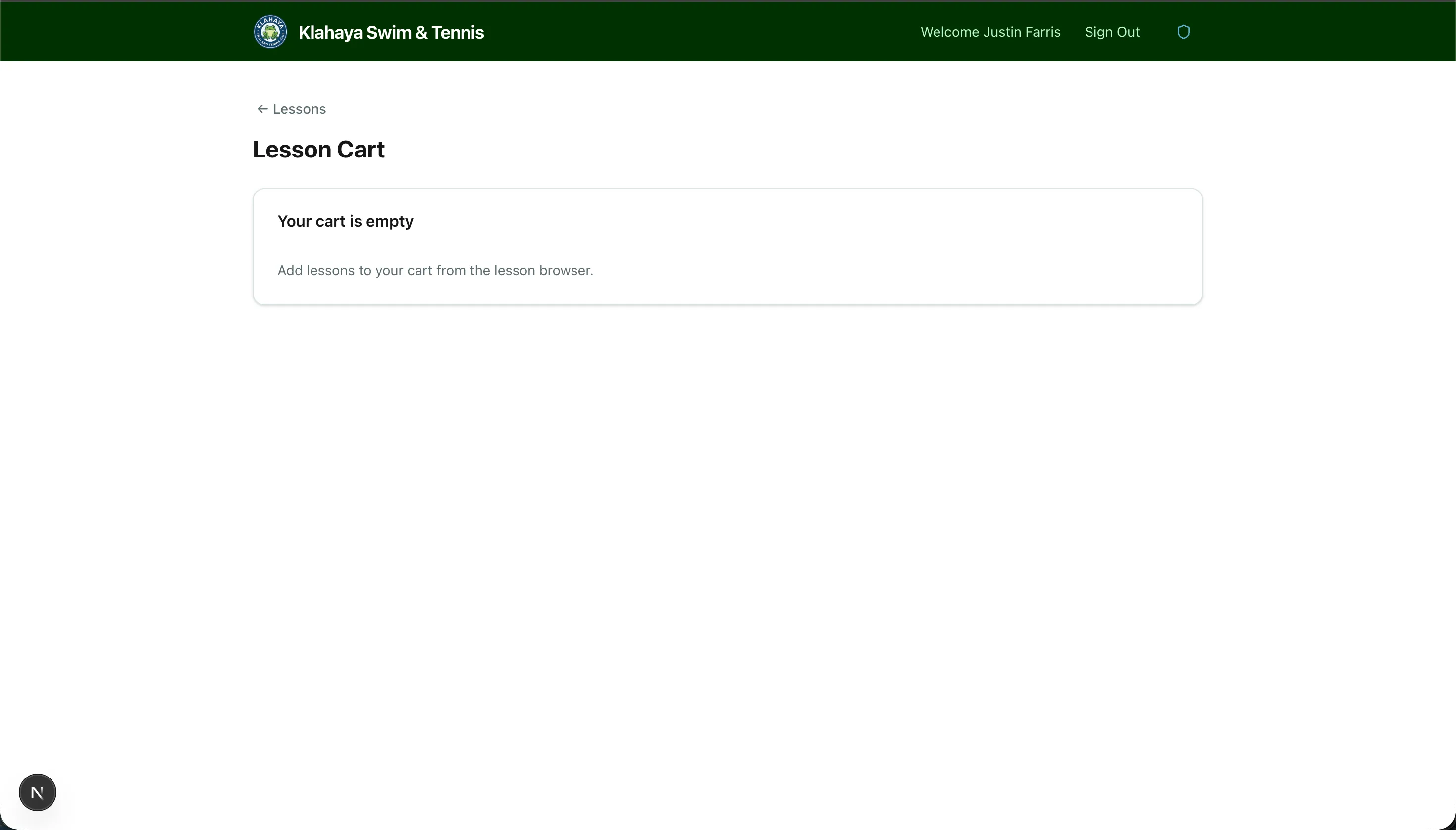
Section titled “Viewing Your Cart”- Click Cart (N) at the top of any lessons page, or go to Lessons > Cart
- Each item shows the program and class, the class time slot (e.g. “Mon, Wed · 9:00 AM–10:00 AM”), the participant, the price for your account type, and a countdown of how long the spot is held
- Click Remove to drop an item
Below the items you’ll see the Subtotal, Sales tax and Total (or, where tax is included in the price, the total with an “Includes $X.XX sales tax” note).
Checking Out
Section titled “Checking Out”- Click Continue to checkout — $X.XX
- On the Review your purchase page, check each registration (program, class, participant and time slot) and the totals
- Pay:
- If you have a card on file, the page shows Will charge with your card (e.g. “Visa •••• 4242”). Click Pay $X.XX and your card is charged immediately.
- If you don’t, click Continue to payment to pay on Stripe’s secure checkout page. Cancelling there returns you to the cart with your items intact.
- The Payment confirmed page shows your receipt — date, payment method, total, receipt ID and each line item — and confirms a copy was emailed to you. Click View my registrations to see the new registrations.
Free Lessons
Section titled “Free Lessons”If everything in your cart is free, there’s nothing to pay: checking out registers the spots directly and takes you straight to Manage Registrations.
See Payment Methods for managing your saved cards.