

Opting In & Out
Every registered player is opted in to every meet by default. If a meet allows opt-outs, you can mark a player out (and back in) from Home, the Meet Schedule page, or the Klahaya app.
How to Opt Out of a Meet
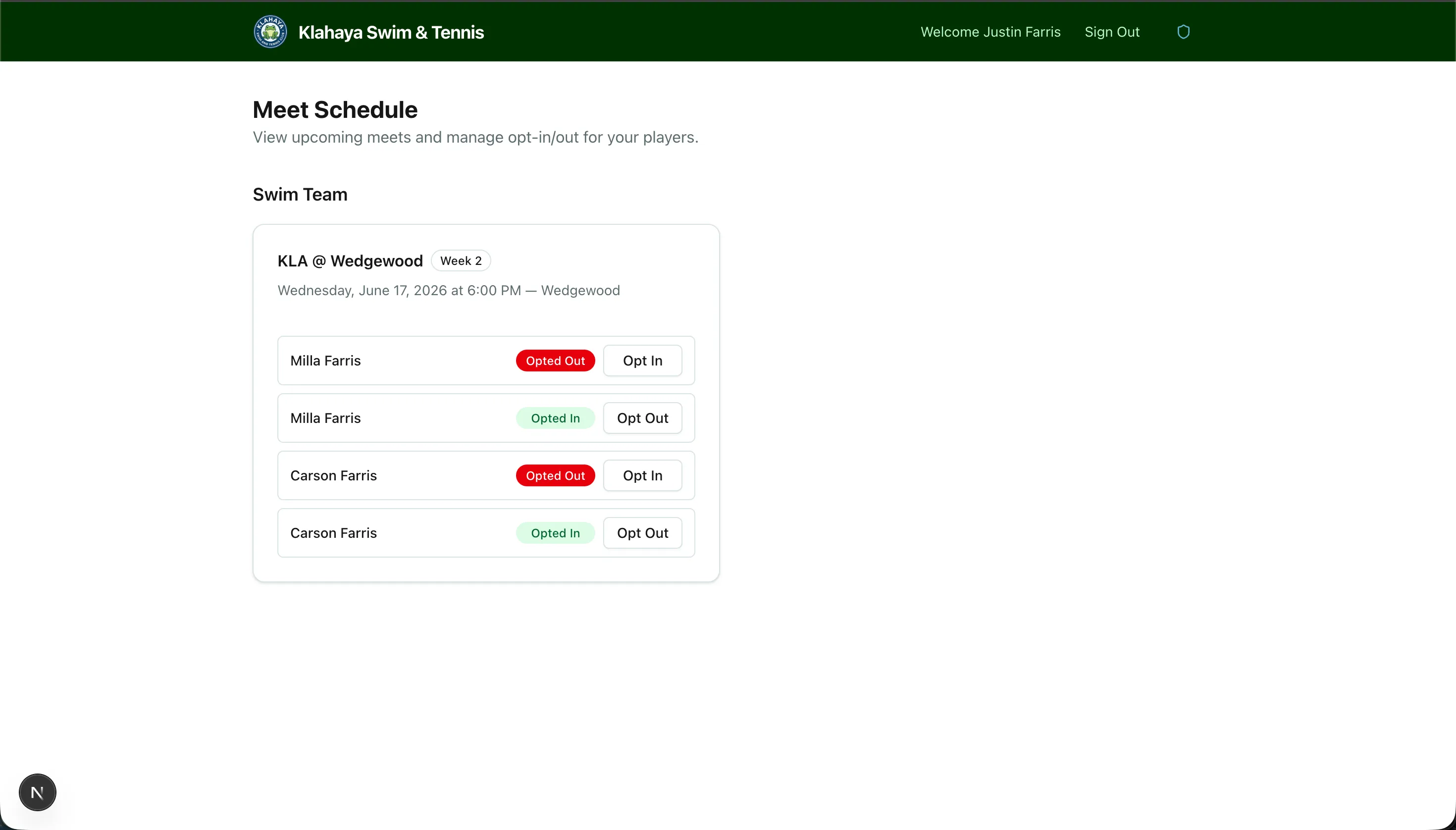
Section titled “How to Opt Out of a Meet”- Find the meet on Home or under Home → Meet Schedule
- Each of your players has a status badge — Opted In or Opted Out — and a button
- Click Opt Out for a player who can’t attend; the badge switches immediately
- Click Opt In to reverse it
In the Klahaya app the status reads Going or Opted out, with Opt in / Opt out buttons; the change saves as soon as you tap.
Locked Meets
Section titled “Locked Meets”The club decides per meet whether opt-outs are allowed. On a meet where they aren’t, the button is replaced by Locked and the status can’t be changed — contact your coach directly.
The Weekly Roster Cutoff
Section titled “The Weekly Roster Cutoff”Coaches pull each week’s rosters once, at a weekly cutoff the club configures (by default Sunday at 9pm Pacific, before the meet week starts). Until then, changes simply update the roster.
After the cutoff, a meet shows the notice “The roster for this meet has already gone to the coaches — any change you make now will notify them directly.” You can still opt a player in or out, but each change immediately emails the team’s coach contacts with the player’s name, the meet, and whether they’re now IN or OUT, so the coaches can adjust lineups.
Reminder Emails
Section titled “Reminder Emails”When the club has meet reminders turned on, families with registered players get one email each Sunday afternoon titled “Upcoming meets this week”, listing every meet in the coming Monday-to-Sunday week with each player’s opt-in status and a link back to the schedule. It’s sent once per family per meet.