

Pricing & Waivers
The Pricing, Gear & Merchandise, and Waivers & Disclaimers sections of a form’s configuration page control what members pay and what they agree to.
Pricing
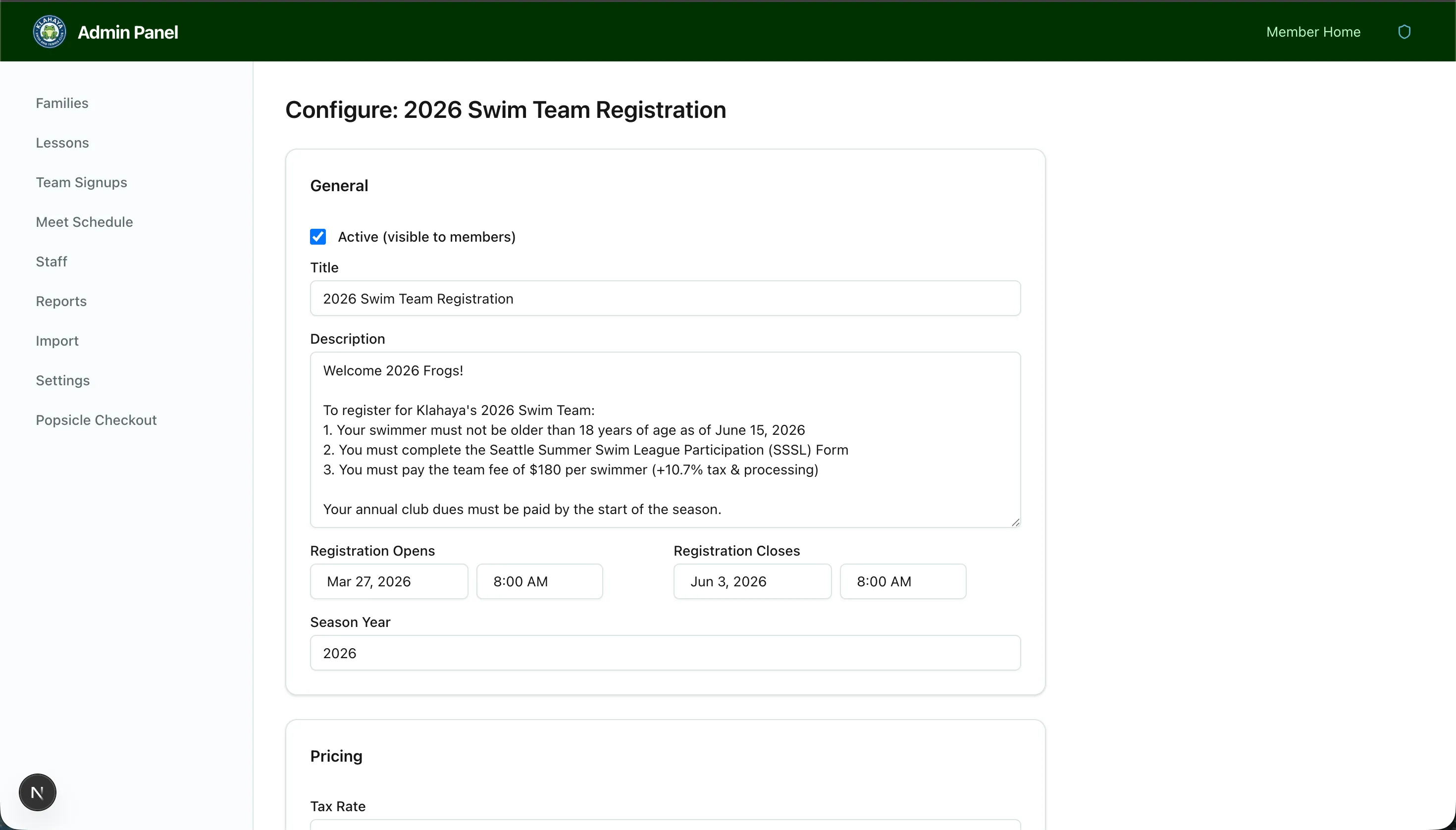
Section titled “Pricing”A new form starts with one tier, Registration Fee. Enter the per-player price for each tier; next to it the editor shows the amount with tax at the club’s current rate. Forms with more than one tier add a Membership Status step to the wizard where the member picks their tier.
Pricing is per player: a family registering three swimmers pays the tier price three times.
How Members Are Charged
Section titled “How Members Are Charged”- Sales tax is a separate line on the Review & Pay step, on the Stripe charge, and on the receipt, at the rate set under Admin → Settings → Payments → Team Signup Tax. It isn’t configured per form.
- Team gear is taxed at the same rate as the registration fee, in one combined tax line.
- No processing fee is passed to members. The club absorbs Stripe’s fee; it is recorded on the payment for the bookkeeper (“Processing fee (absorbed by club)”) but never appears on a member’s total or receipt.
- Families with a card on file pay in one click; others go through Stripe Checkout. See the member guide’s Payment page.
- Swim and tennis charges land on separate Stripe products so they can be told apart in the Stripe dashboard.
Gear & Merchandise
Section titled “Gear & Merchandise”Add gear items members can order during signup. Each item has a Label, Price ($), Description, and an optional Order Deadline, which is shown to members as “Order by …” (it’s informational — the item stays orderable). Options:
- Offer multiple sizes with a comma-separated Sizes list
- Allow ordering multiple, with a Max quantity per size
- One per registered player, so the wizard asks for one selection for each registered player
External Store
Section titled “External Store”External Store URL adds a Visit Store link on the Gear and Review steps for items you sell elsewhere. External Store Label replaces the default “Additional gear is available from our external store:” text.
Waivers & Disclaimers
Section titled “Waivers & Disclaimers”- Add one or more waivers, each with a Title and Body
- Members must open and read each waiver before they can accept it
- Check Require signature at checkout to add a typed signature field
The accepted waivers, timestamp, and signature are stored on the registration and appear on the admin detail page and in exports.