

Data Import
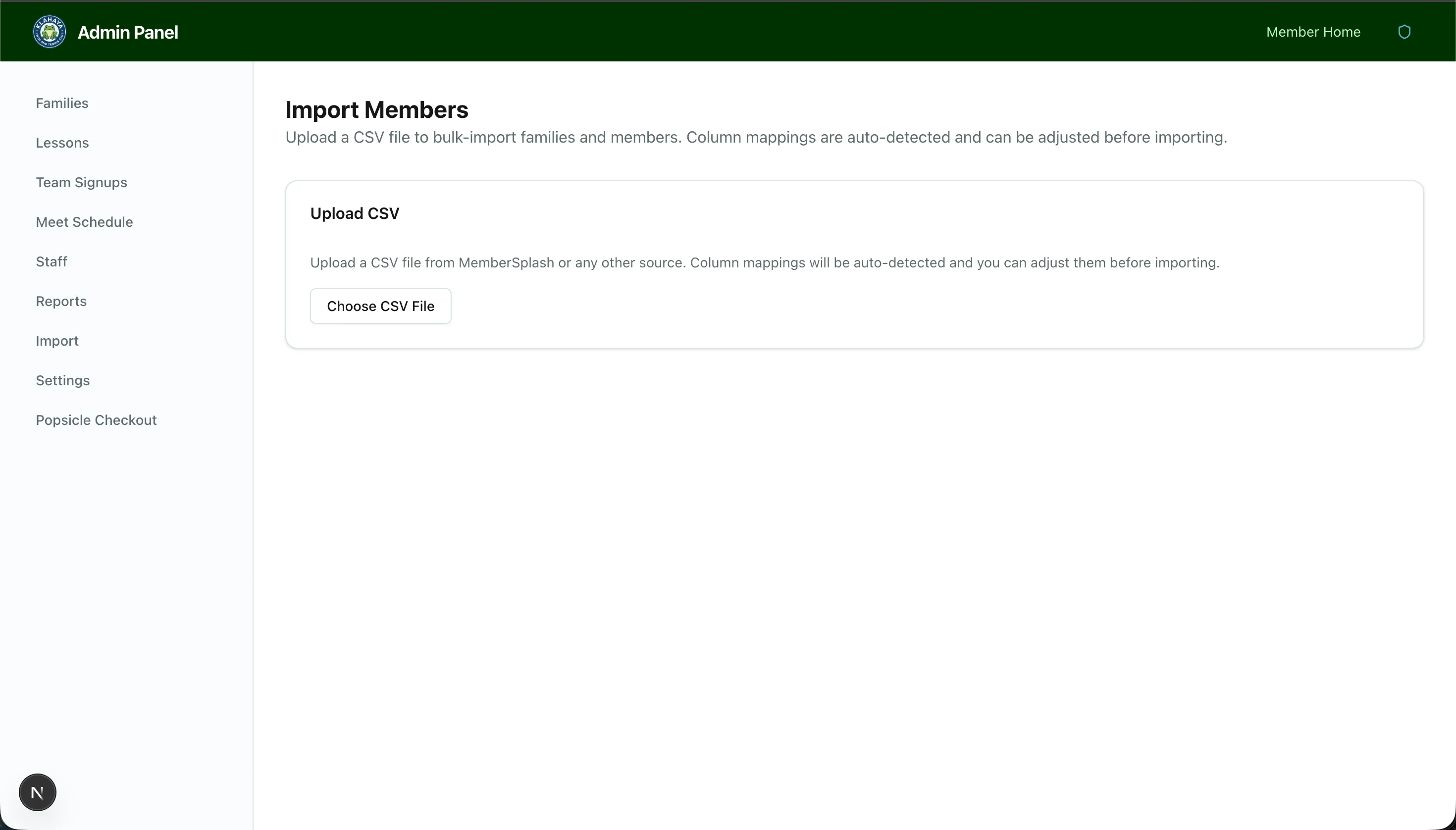
The Data Import wizard (Admin > Import, /admin/import) uploads a CSV, maps its columns, and shows every change for review before anything is written.
Import types
Section titled “Import types”What are you importing? offers:
- Members — Re-import the main member list to sync names, emails, account types, and add new families.
- Team roster (external system) — Import a team roster registered elsewhere (e.g. SSSL). Players are fuzzy-matched to existing roster members; ambiguous matches are confirmed during review. Creates a team registration per family and bumps their volunteer-hour requirement. See Importing a Team Roster.
- Popsicle punch balances (one-time migration) — Credit each family’s remaining paper-card punches into the digital ledger.
- Guest pass balances (legacy migration) — Credit remaining guest passes from the legacy system.
- Household details (address, phone, notes) — Update address, home phone, member-since year, directory opt-in and the staff check-in note on existing families. Never creates families.
- Waiver acceptances (external system) — Record signed waivers from another system against the current season.
Balance, household and waiver rows match families by Member Number (preferred) or Account ID. Volunteer opportunities have their own importer at Admin > Volunteer Opportunities > Import opportunities, with a Download CSV template link, a Season for all rows picker and a Publish all rows immediately option.
How to Import
Section titled “How to Import”- Choose the import type and click Next: Upload CSV (for a team roster, first Pick a team signup form and, if it has several, a Pricing tier)
- Click Choose CSV File
- On Map CSV columns, check the auto-detected Maps To for each CSV Column against its Sample Values and fix any mismatch. Required fields are flagged until mapped.
- For Members, choose what happens to brand-new members: Import only, Send invite emails or Activate accounts now
- Click Next: Review changes
- Review, then click Apply N adds + M updates
The review step
Section titled “The review step”Review changes summarises what will happen — new families, new members, roster members, registrations, credits, signatures — plus updates (review), need a match, unchanged, warnings and errors.
- Confirm matches — rows the importer couldn’t match confidently. For each, pick a candidate (shown with DOB and a match percentage), choose Add as a new family member of an existing family and search for the family, or Skip this row.
- Updates — each proposed change shows Field, Before and After with an Apply checkbox. Use Accept all / Skip all.
- Adds (auto-apply) — grouped by family.
- Warnings — rows that still import but deserve a look. Errors — rows that won’t be written; the rest still applies.
How members are matched
Section titled “How members are matched”The Members import matches each row by Member ID first (globally — a Member ID found under a different family proposes moving the record, which you accept or skip), then by email within the family, then by name and date of birth for roster members. Families match by Account ID, falling back to Member Number. Unknown account types are warned about, never guessed.
Because the portal allows one login per email, a household that shares one address gets the login on the billing member; everyone else on that address is created as a roster member without a login. The review says so per row.
Every write is recorded in an audit log and appears on each family’s History tab attributed to the admin who ran the import. See Account History.