

Programs & Sessions
Lesson management is organized in a hierarchy: Programs contain Sessions, which contain Classes.
Creating a Program
Section titled “Creating a Program”- Navigate to Admin panel > Lessons (the Lesson Programs page)
- In the Add Program card, enter the Program Name (e.g., “Swim Lessons”) and an optional Description
- Under Who can see this?, tick the account types the program is for — or leave all unchecked to show it to everyone
- Click Add Program
Program cards show an Active / Inactive badge and audience badges (Everyone or the selected account types). Click Edit Program to change the name, description, audience or Active flag.
Managing Sessions
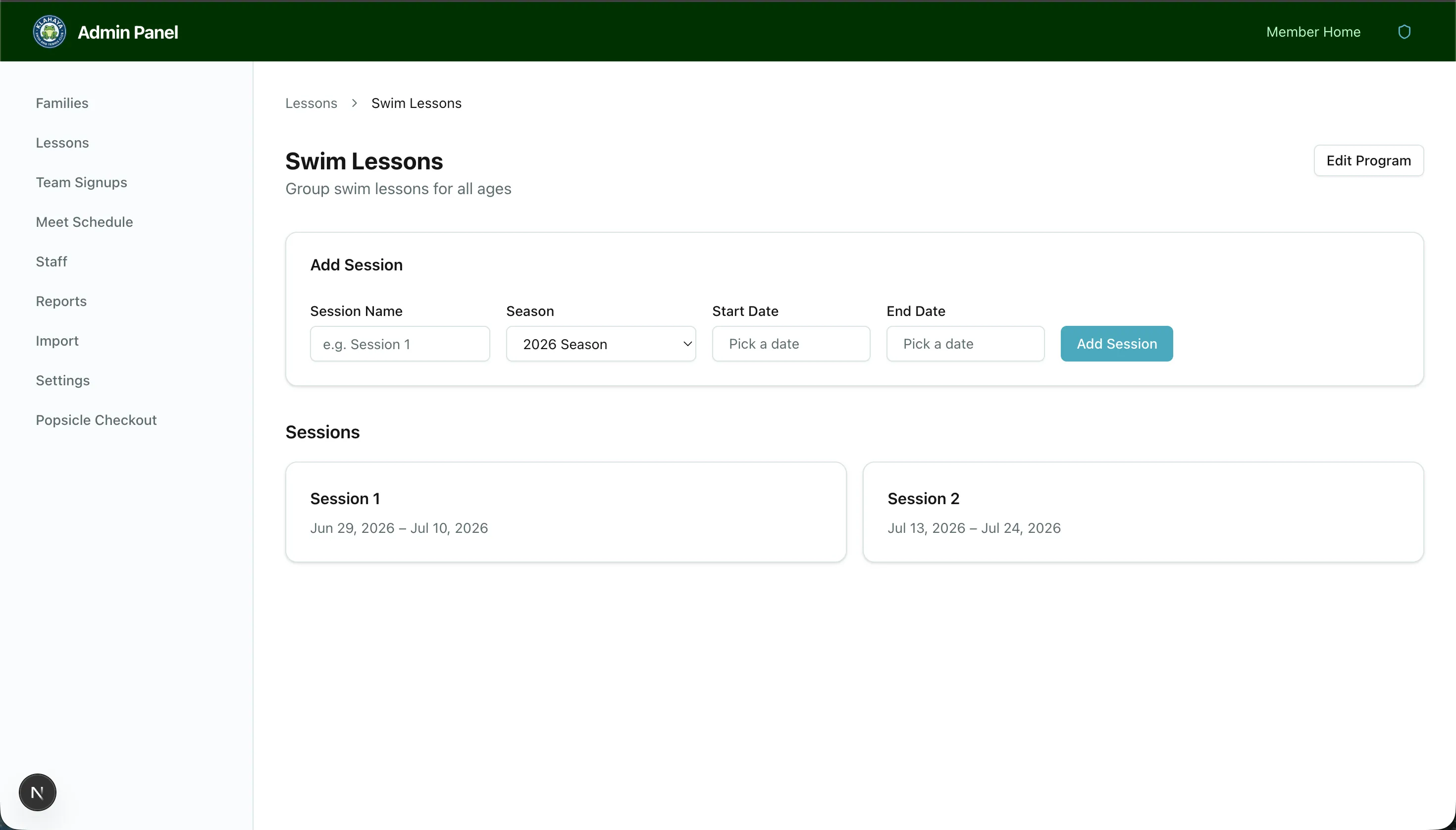
Section titled “Managing Sessions”- Click on a program to view its sessions
- Click Add Session to create a new session within the program
- Configure the session:
- Session name (e.g., “Summer 2026 - Session 1”)
- Start and end dates
- Linked season
- Save the session
The Session Page
Section titled “The Session Page”Opening a session shows its name and date range, header buttons Download CSV and Edit Session, a Google Sheets panel (see Roster Exports), and four tabs:
- Classes (N) — see Classes & Pricing
- Registration Windows — per-account-type open times or lottery mode; see Registration Windows
- Early Access (N) — hand-picked families who may register early; see Early Access
- Registrations (N) — the roster, waitlists, direct booking, moves and cancellations; see Admin Booking and Waitlist Configuration