

Creating Meets
Meets are scheduled events tied to a team signup form and a season. Every player on a paid registration for that form is on the meet’s roster automatically.
Creating a Meet
Section titled “Creating a Meet”- Go to Admin → Meet Schedule
- Click Add Meet
- Fill in the dialog:
- Sport — the team signup form this meet belongs to (required)
- Season (required)
- Title (required) — for example, “View Ridge @ KLA”
- Date (required) and Time
- Location — for example, “Klahaya”
- Week Label — for example, “Week 1”; shown as a badge to members and as a column on the schedule
- Home meet — adds a Home badge everywhere the meet appears
- Opt-out allowed — whether families can mark players out. Uncheck it and the meet shows Locked to members
- Description — optional notes shown under the meet
- Click Create Meet
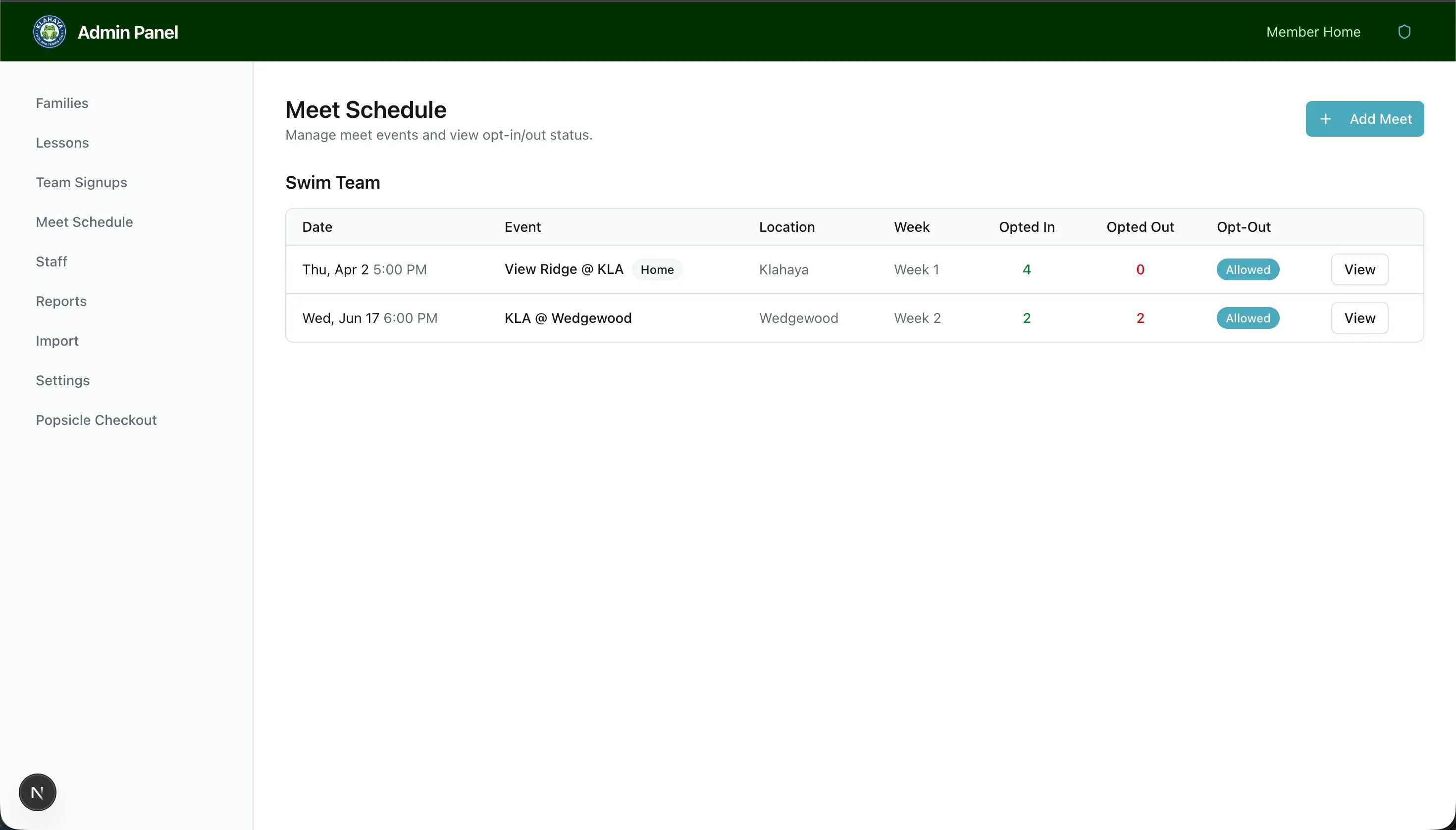
The schedule page groups meets by sport and shows, for each one, the date and time, Event, Location, Week, live Opted In and Opted Out counts, and whether opt-out is Allowed or Locked.
Editing a Meet
Section titled “Editing a Meet”Click Edit on the schedule row (or the Edit button on the meet’s detail page) to open the Edit Meet page. Every field can be changed; click Update Meet to save. If the meet has a linked Google Sheet, the sheet updates to match.
Deleting a Meet
Section titled “Deleting a Meet”Open the meet’s detail page and click Delete. The Delete meet? dialog confirms the title; deleting removes the meet and all of its opt-out records.
Other Ways Meets Change
Section titled “Other Ways Meets Change”- Deleting a team signup form deletes all of its meets — the confirmation dialog shows how many
- Meets with a date in the past drop off members’ schedules automatically; they stay on the admin schedule and in the all-meets roster