

Viewing Families
The Family Roster (Admin > Families, /admin/families) lists every club family with their account details, people and current-season status.
The roster table
Section titled “The roster table”Each family occupies one block of rows — one row per login member, plus roster members when they match your search:
- Family — the family name, with Account ID · #Member number underneath. The Account ID is the club’s internal account number; the member number is the club-facing number (for example M205).
- Type — the family’s account type for the current season, or Unassigned.
- Member — each person’s name. Roster members show their member type; people who have been invited but haven’t signed in yet show an Invited badge and a Send Invite button.
- Email — the login member’s email.
- Teams — one badge per team or activity the family is enrolled in this season.
- View — opens the family’s detail page.
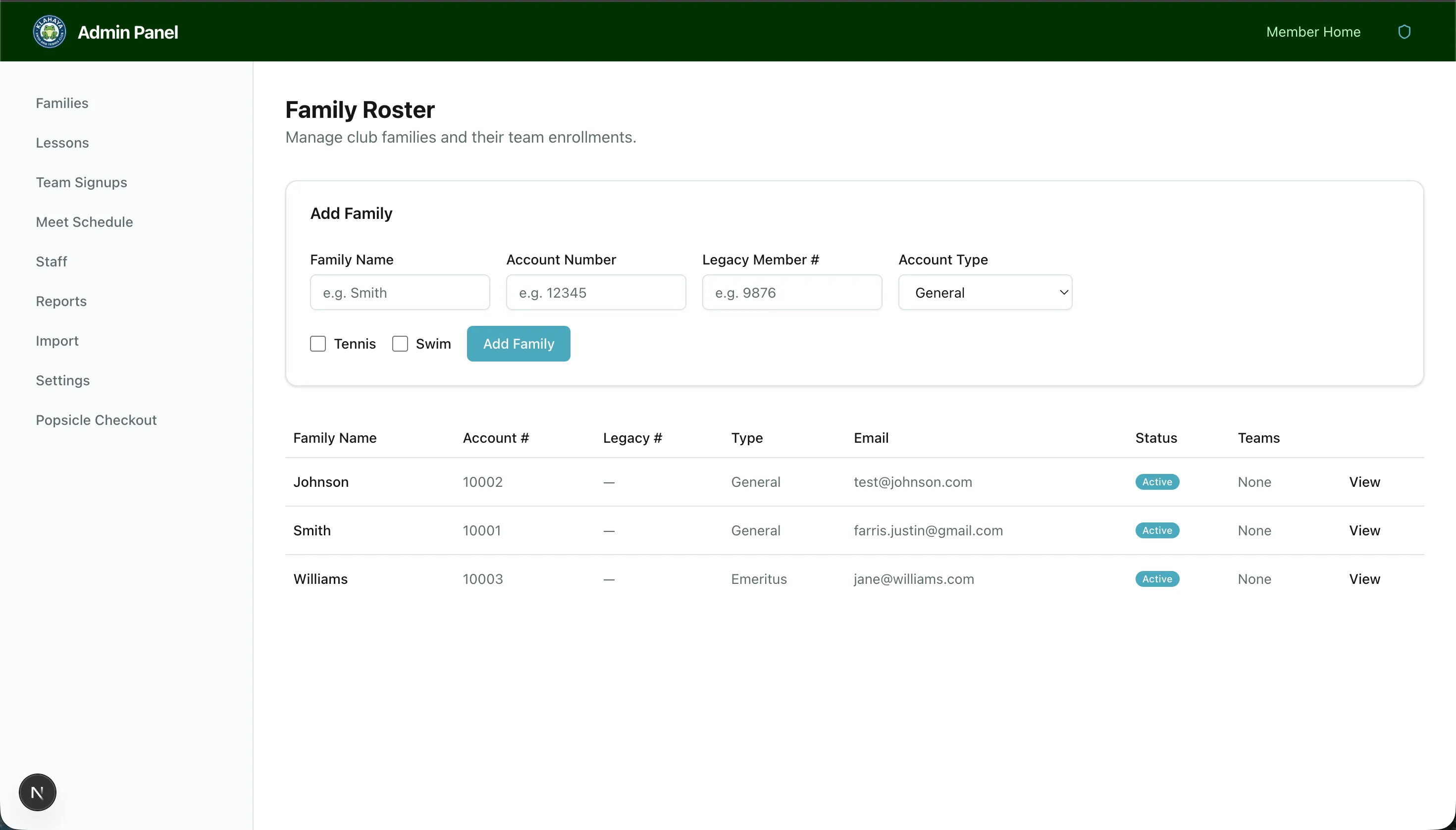
Click the Family or Type column header to sort. Each click cycles ascending, descending, then back to the default order. The table fits the screen without horizontal scrolling — long names wrap instead.
Searching
Section titled “Searching”The search box (Search by name, member, account ID, or email) matches as you type against:
- the family name
- the Account ID
- the member number — partial numbers work, and you can type it with or without the leading zero or prefix (for example
205finds M205) - any login member’s name or email
- any roster member’s name
When the search matches an individual person, that person’s row is highlighted and roster members that match are added to the family’s block, so you can find a child by name.
Filtering
Section titled “Filtering”Two dropdowns sit next to the search box:
- Account type — one account type, or Unassigned for families with no current-season type.
- Team — families enrolled in a given team or activity this season.
The counter reads Showing N of M families. Clear filters resets both. Your filter choices are remembered per admin user, so the roster opens the way you left it.
Staff view
Section titled “Staff view”Staff accounts can open the Family Roster too, in a view-only mode: the subtitle reads (view only), there is no Add Family or Send Invite button, and payment information is hidden. From the roster, staff can open a family’s Overview and Check Ins & Guest Passes tabs only. See Family Detail View.