

Logging In
The member portal signs you in with your email address and a one-time code or link — no password needed for members. Staff and admin accounts can also use a password.
How to Log In
Section titled “How to Log In”- Go to the member portal and click Sign In
- Enter the email address associated with your membership and click Continue
- Check your email for a message from the club
- Either click the sign-in link in the email, or type the 6-digit code into the Verification Code field — it submits as soon as all six digits are entered
- You’ll be taken to your Home page
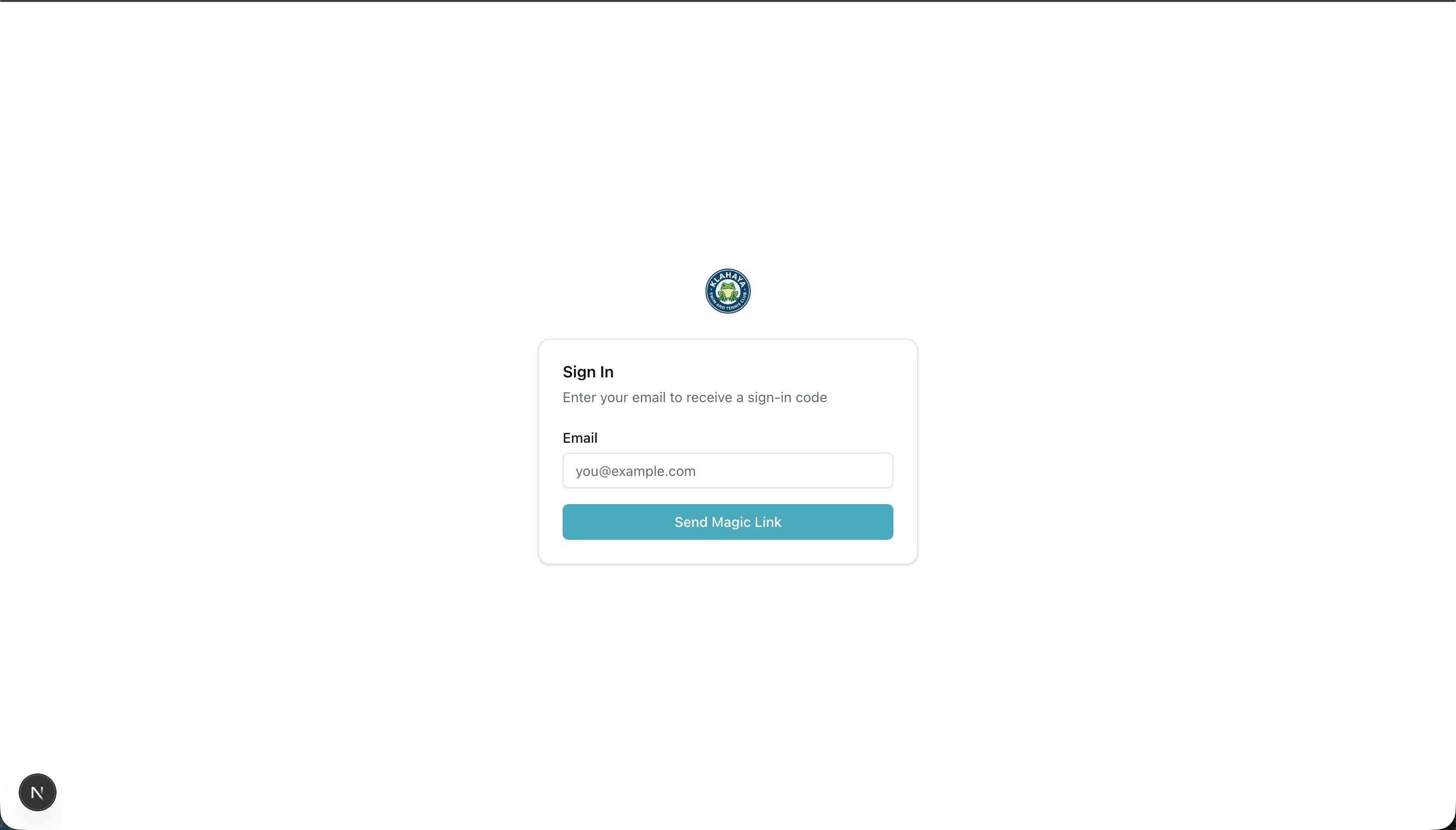
Staff and admin sign-in
Section titled “Staff and admin sign-in”If your account is a staff or admin account with a password, the page asks for your Password after you enter your email. Click Sign In. Forgot it? Click Use an email code instead to sign in with a code like everyone else — an admin can also set a new password for you.
Picking up where you left off
Section titled “Picking up where you left off”If you open a link to a specific page (for example a lesson, a waiver, or a reservation) while signed out, you are asked to sign in and then sent on to that page rather than to Home. The sign-in link in the email returns you to the same place.
If something goes wrong
Section titled “If something goes wrong”The sign-in page explains the problem in plain language — for example That code didn’t match. Double-check it and try again. or Too many sign-in attempts. Please wait a few minutes and try again. An expired or already-used link shows Authentication Error with a Back to Sign In button.
If your sign-in works but the page reads We couldn’t find your membership, no one at the club is listed under that email. Try another address you may have given the club, or click Ask the club for access and an administrator will be in touch by email.
The Klahaya app
Section titled “The Klahaya app”Signing in to the Klahaya app works the same way: enter your Email address and tap Continue. Members are taken to Check your email to enter the emailed code (tap Send a new code if it didn’t arrive); staff and admin accounts with a password go to Sign in with a password, with Email me a code instead as the fallback. Tapping a portal link on your phone opens the matching screen in the app, and a link opened before you were signed in is held until you finish signing in.
On your first sign-in the app walks you through a short setup checklist — Let’s get you set up — covering Notifications (optional), Waivers (required if any need your signature) and Add a card (optional), then Go to Home.