

Viewing Registrations
Once members start registering, the Team Signups pages show you who signed up, what they paid, and every answer they gave.
The Team Signups Overview
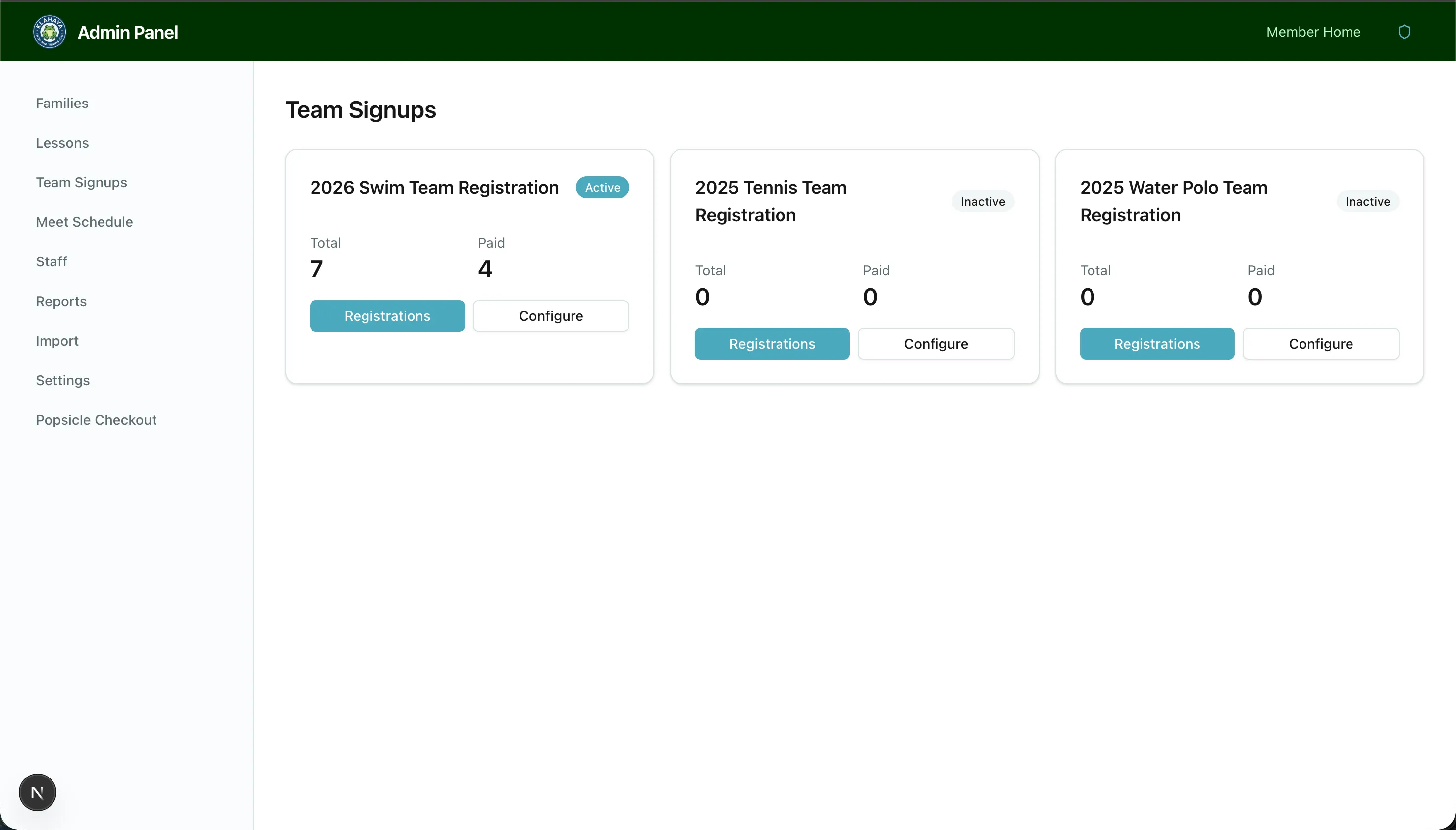
Section titled “The Team Signups Overview”Admin → Team Signups shows one card per form with an Active / Inactive badge and two counts:
- Players — every player on every registration for the form
- Paid players — players on paid registrations only
The counts are per player, not per family, so they match what you need for rosters and gear orders. Click Registrations to open the list, or Configure to edit the form.
The Registration List
Section titled “The Registration List”The list page is headed by the form name and its registration count, with Download CSV and Delete team on the right and the Google Sheets panel below (see Google Sheets Sync).
Each row shows the submission date, the Guardian 1 name, the player names, and a status badge. Click a row to expand it in place and see the full record without leaving the page:
- Guardian 1, Guardian 2, and Emergency contacts
- Registration — submitted date, member status, payment amount and status, waiver acceptance, and signature
- The players, with league age, category, and shirt size
- Gear ordered
- Medical conditions
Click View on a row to open the full detail page.
Registration Detail
Section titled “Registration Detail”The Registration Detail page groups everything into cards: Contact Information, the players table (with a League Age column — the age as of the form’s cutoff date, not the player’s current age), Gear Orders, Waivers, and Payment (amount, status, and the Stripe payment intent).
Editing a Player
Section titled “Editing a Player”- Click Edit in the player’s Actions column
- Change First name, Last name, Date of birth, Competition category, or T-shirt size — league age recalculates from the date of birth
- Click Save
The form’s enforced age rules apply to admin edits too. If the registration has a recorded payment, the dialog reminds you that edits do not adjust the charge.
Deleting a Player
Section titled “Deleting a Player”Click Delete in the player’s row to remove just that player — useful for an accidental duplicate. The registration and its other players stay. You can’t delete the last remaining player; use Delete registration instead.
Deleting a Registration
Section titled “Deleting a Registration”Delete registration removes the registration with all its players and gear lines. The linked payment record is kept for audit.
Deleting a Whole Team Form
Section titled “Deleting a Whole Team Form”Delete team on the registration list removes the form, all of its registrations, and its meet events. The dialog shows exactly how many of each will go and asks you to type the form name to confirm.