

Registering for a Class
Once you’ve found a class with available spots, you can register a person from your family for it.
How to Register
Section titled “How to Register”- Open the session and find the class you want
- Click the action button — Add to Cart for a paid class, or Register if the club isn’t taking payment online
- Under Participant, pick the person you’re registering by clicking their name
- Click Add to Cart (or Confirm Registration)
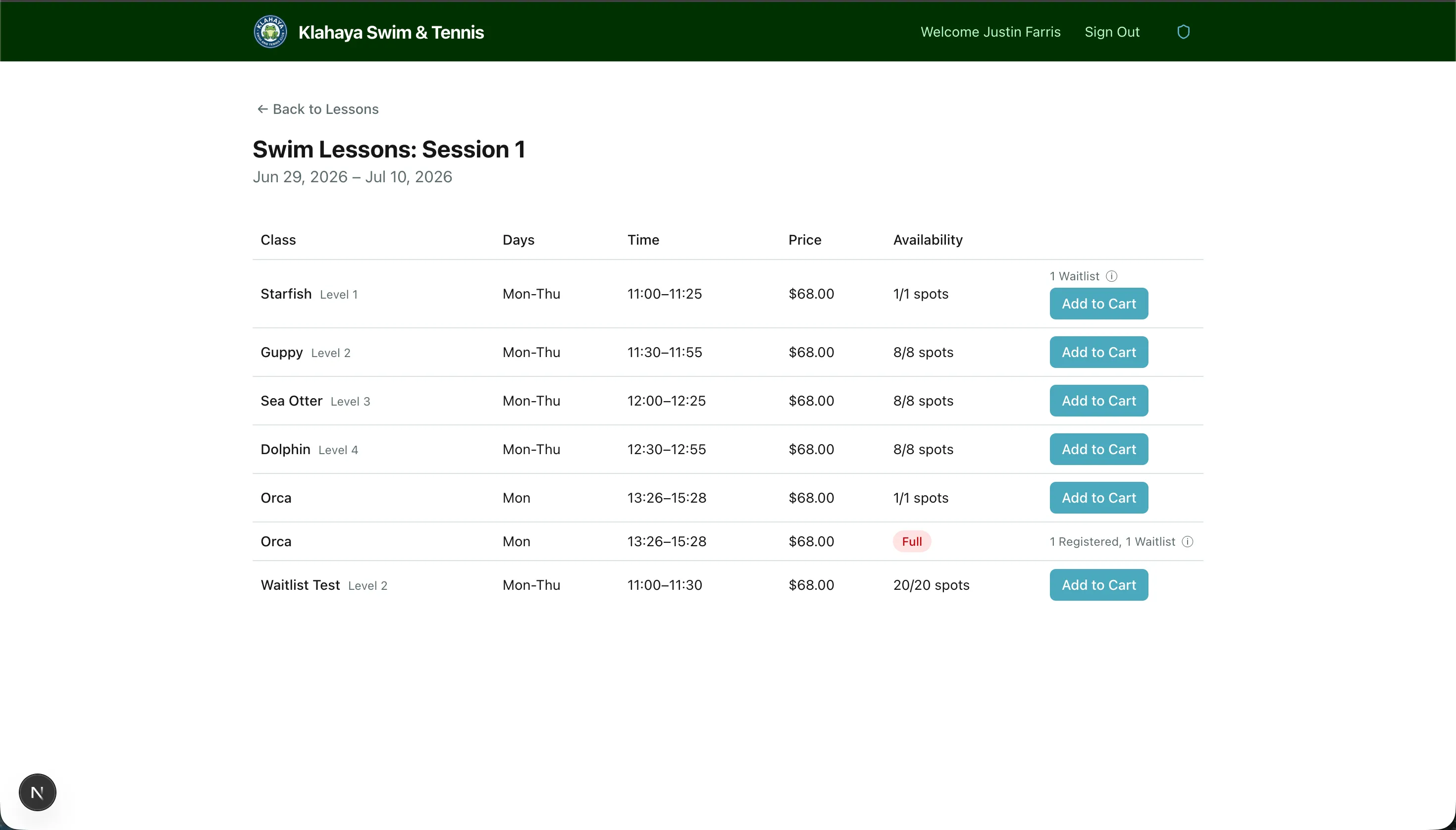
Add to Cart holds the spot for 15 minutes while you check out — see Cart & Checkout. Register confirms the registration immediately.
Who Can Be Registered
Section titled “Who Can Be Registered”The Participant list includes everyone in your family — children and other roster members as well as adults who hold their own login. Names are chosen from the list; you can’t type a name in. If nobody is eligible you’ll see “No family members available” with a link to add one; an Add a new person button appears in the dialog when your account type allows adding a free roster member. See Family Members.
Banners You May See
Section titled “Banners You May See”At the top of a session page:
- Early access — registration is open for your family. You can register for any class now, ahead of the public window.
- Your lottery number is #N. Followed by either “Your registration window is open” or the date and time it opens.
- Registration is being run in person. Visit the front desk to sign up — online registration is closed for this session. A View live queue button shows what number is being served. See Early Access & Lotteries.
- You need to add family members before you can register for classes.
If the Class is Full
Section titled “If the Class is Full”If a class has no spots remaining but has a waitlist, you’ll see Join Waitlist instead. Pick the participant and confirm — you’ll get an email with a link if a spot opens up. See Waitlist Offers. A full class without a waitlist simply reads Class full.